If you created a TikTok video and now need a clean copy without the watermark, you are not alone. Creators often need the original-looking MP4 for Instagram Reels, YouTube Shorts, client approvals, backups, editing in CapCut, or simply keeping a safer archive of their work. The confusing part is that TikTok gives you different options depending on where the video is in its lifecycle: before posting, after posting, in drafts, private, public, or already deleted.
This guide is written for creators who want to download their own TikTok videos without watermark in a practical way. It does not promise magic access to private accounts or deleted files. Instead, it explains the cleanest workflows, what ClipTool can help with, where TikTok itself is still the better option, and how to avoid ending up with a blurry screen recording when you actually need a reusable MP4.
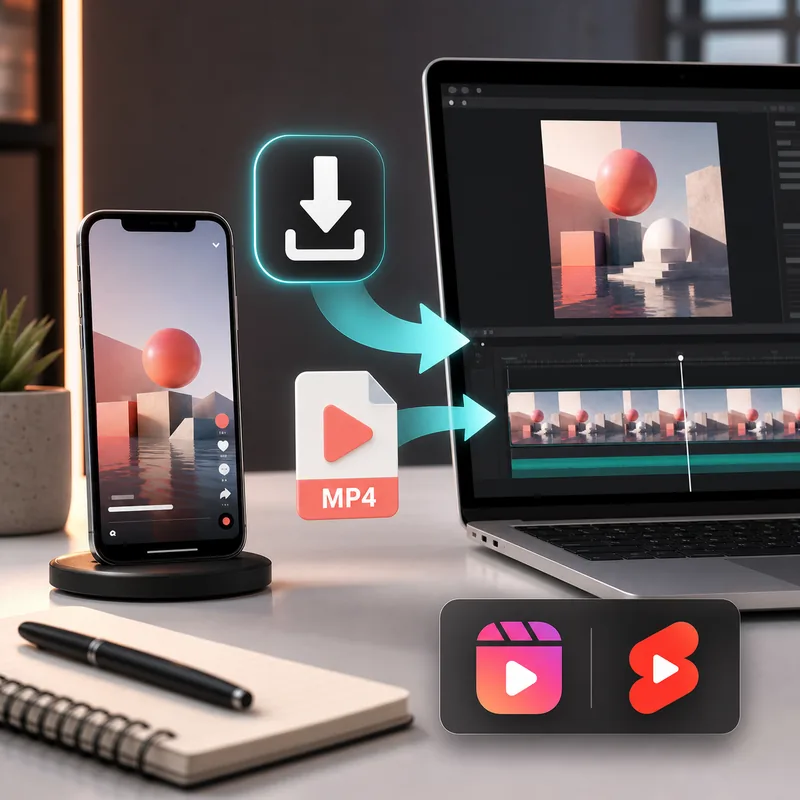
Quick answer: the best method depends on when you need the file
If the TikTok is already public, the simplest workflow is to copy the video link and use a browser-based tool such as ClipTool's TikTok downloader without watermark. That usually gives you a clean MP4 without installing an app or logging in. If the video has not been posted yet, your best move is to save or export a clean version before publishing, because drafts are stored inside TikTok and are not always accessible from a public URL.
For creators, this difference matters. A public URL can be processed like any other supported TikTok link. A draft is not a public URL. A private or deleted video may not have a downloadable source available to outside tools. The safest habit is to keep a clean master file before you post, then use a downloader only when you need to recover or reuse a video that is already public.
What counts as “your own TikTok video”?
In this article, “your own video” means content you created or have permission to reuse. It might be a video on your profile, a brand video posted by your business account, a client-approved TikTok, or a piece of content you uploaded for testing. The workflow is different from downloading someone else's viral clip for reposting. When the video is yours, the goal is usually clean archiving, cross-posting, editing, repurposing, or sending the file to a team.
That also changes the quality standard. A casual viewer might accept a screen recording. A creator usually needs better: the right aspect ratio, readable captions, working audio, no overlay buttons, and a file that opens cleanly in editing software. That is why a real MP4 download is better than recording your phone screen while the video plays.
Before posting vs after posting: which workflow should you use?
| Situation | Best workflow | Why it matters |
|---|---|---|
| The video is still in your editor or camera roll | Export or save the master file before posting | You keep the cleanest possible copy |
| The video is public on TikTok | Copy the link and use a no-watermark downloader | Fast recovery for a reusable MP4 |
| The video is private or friends-only | Try your original project file first | Outside tools may not access restricted media |
| The video is deleted | Check local backups, cloud photos, or editor exports | A deleted public source may no longer exist |
Method 1: download a public video from your own TikTok profile
This is the fastest method when the post is already live. Open TikTok, go to your profile, choose the video, tap Share, and copy the link. Then open ClipTool's TikTok to MP4 converter, paste the link, and download the MP4 option when the result appears. On desktop, you can copy the URL from the browser address bar and follow the same steps.
- Open your public TikTok video.
- Tap Share and choose Copy link.
- Paste the link into ClipTool.
- Wait for the video result to load.
- Save the clean MP4 to your phone, computer, or cloud folder.
On iPhone, the file may land in the Files app first. If you want it in Photos, open Files, find the download, then save or share it into Photos. The broader TikTok downloader for iPhone guide explains that file flow in more detail. On PC or Mac, the file normally goes to Downloads, where you can rename it and move it into a project folder.
Method 2: save a clean copy before you publish
If you are still editing the video, do not wait until after posting to think about backups. Save the export from CapCut, Premiere, DaVinci Resolve, Canva, TikTok's editor, or your camera roll before the content goes live. This gives you the highest-control version because it exists before TikTok adds platform layers, compresses the upload, or changes how the post is distributed.
A good creator workflow is simple: keep one folder for raw clips, one folder for project files, and one folder for final exports. Name the final export with the platform, date, and topic, for example 2026-05-skincare-hook-01-tiktok-master.mp4. If you later need to publish the same idea on Reels or Shorts, you can use that master file instead of hunting through TikTok for the posted version.
What about drafts, private videos, and “Only me” posts?
Drafts are the trickiest case because they are not normal public web pages. They usually live inside the TikTok app on the device where you created them. If you uninstall TikTok, switch phones, clear app data, or lose access to the device, drafts can disappear. A web downloader cannot reliably download a draft because there is no public TikTok URL for it to read.
Private and “Only me” videos are also different from public posts. You may own the video, but TikTok may not expose a public media source to outside tools. If you need a clean copy, start by checking your original editor export, camera roll, iCloud, Google Photos, Dropbox, Drive, or the device where the video was made. Use a downloader for public links, not as your only backup plan for restricted content.
How to reuse your clean MP4 without losing quality
Once you have the clean MP4, keep it as a source file, not just a temporary download. Avoid sending it through messaging apps that compress video heavily. If you need to share it with a client or editor, use a cloud link or a ZIP package. For posting to another short-form platform, preview the first frame, captions, and safe zones because each app places buttons and captions in slightly different areas.
For Instagram Reels and YouTube Shorts, the safest version is a vertical 9:16 MP4 with readable text, clear audio, and no UI overlays. If the TikTok used a platform-specific sound, check whether that audio can be reused elsewhere. Sometimes the video file plays fine, but the music license is platform-specific. In that case, replacing the track with licensed audio before reposting is the safer professional move.
When a screen recording is not good enough
Screen recording feels convenient, but it often creates problems: lower resolution, phone UI elements, notification bars, accidental taps, muted audio, inconsistent frame rate, and visible playback controls. It also takes real time because you have to play the whole video from start to finish. For a single casual backup, it might work. For creator operations, client work, or batch reuse, it creates messier files than necessary.
If you are downloading several public posts from your own account, use the normal link workflow instead. For large archives, keep a spreadsheet with the original TikTok URL, publish date, campaign, and file name after download. That makes it much easier to find the right version later and avoids duplicate exports with names like video-final-final-2.mp4.
Troubleshooting: why your own TikTok video may not download
If the downloader says the link cannot be processed, first copy the link again from TikTok instead of using a cropped message preview. Short links such as vm.tiktok.com or vt.tiktok.com usually redirect, but sometimes opening the link in a browser and copying the final tiktok.com/@username/video/... URL helps.
If the video is private, deleted, region-limited, age-restricted, or still a draft, the issue is not your browser. The source may simply not be available to a public downloader. If the file downloads but will not save to your camera roll, check the Files app on iPhone or Downloads folder on Android. The how to save TikTok videos page covers common device-specific save paths.
Safe reuse checklist for creators
- Use your own content or content you have permission to reuse.
- Keep a master export before posting whenever possible.
- Use public TikTok links for downloader workflows.
- Rename downloaded files with date, campaign, and platform.
- Check audio rights before reposting to another app.
- Store final MP4 files in a cloud folder, not only in Downloads.
A simple backup routine for busy creators
The easiest way to avoid future download stress is to build a tiny archive habit. After each finished edit, save the master file, the posted TikTok link, the caption, and any source assets in one project folder. If you work with clients, add approval notes or campaign names too. This takes less than a minute, but it means you can recover a clean file even if TikTok changes the post, removes the sound, or you later need a version for another platform.
For teams, make one shared naming convention and stick to it. A file named 2026-05-brand-hook-ugc-01-clean.mp4 is much easier to reuse than IMG_4829.mov. Good naming is not glamorous, but it saves time when you need to send the right video to an editor, media buyer, client, or social scheduler.
FAQ
Can I download my own TikTok without watermark after posting?
Yes, if the video is public and TikTok exposes a supported media source. Copy the link from your profile, paste it into ClipTool, and save the MP4 result.
Can I download a TikTok draft without posting it?
Usually not through a web downloader. Drafts are stored inside the TikTok app and do not behave like public URLs. Export or save from the editor before posting whenever you can.
Will the downloaded file be better than a screen recording?
In most cases, yes. A direct MP4 download avoids visible phone controls, notifications, shaky playback, and extra compression from recording the screen.
Can I use the same file for Reels and Shorts?
Yes, but preview the file first. Check safe zones, captions, audio rights, and whether the video still makes sense on the other platform.
Does ClipTool need my TikTok login?
No. ClipTool works with public TikTok links in the browser. You should not enter your TikTok password into a downloader.
Ready to save your own public video? Open ClipTool's no-watermark TikTok downloader, paste the link, and keep a clean MP4 copy for your next edit, backup, or cross-posting workflow.
![How to Vet a TikTok Influencer Before a Brand Collaboration [2026]](/_next/image?url=https%3A%2F%2Fr2.cliptool.app%2Fblog-thumbnails%2Fhow-to-vet-tiktok-influencer_800.webp&w=828&q=75)
![How to Analyze a Competitor’s TikTok Account: 30-Video Audit [2026]](/_next/image?url=https%3A%2F%2Fr2.cliptool.app%2Fblog-thumbnails%2Fhow-to-analyze-tiktok-competitors_800.webp&w=828&q=75)
![How to Find Top-Performing Videos on Any TikTok Account [2026]](/_next/image?url=https%3A%2F%2Fr2.cliptool.app%2Fblog-thumbnails%2Ffind-top-performing-videos-tiktok-account_800.webp&w=828&q=75)