When a TikTok downloader is not working, the problem is not always the downloader itself. A broken short link, private video, deleted post, region restriction, browser download setting, slideshow post, or missing audio source can all produce the same frustrating result: no file, a failed download, a video that will not open, or an MP3 button that does not appear.
This guide gives you a practical troubleshooting checklist. It is written for normal users, creators, editors, and social media teams who need to save public TikTok videos without losing time. You can start from the main TikTok downloader, then use the checks below when a specific link fails.
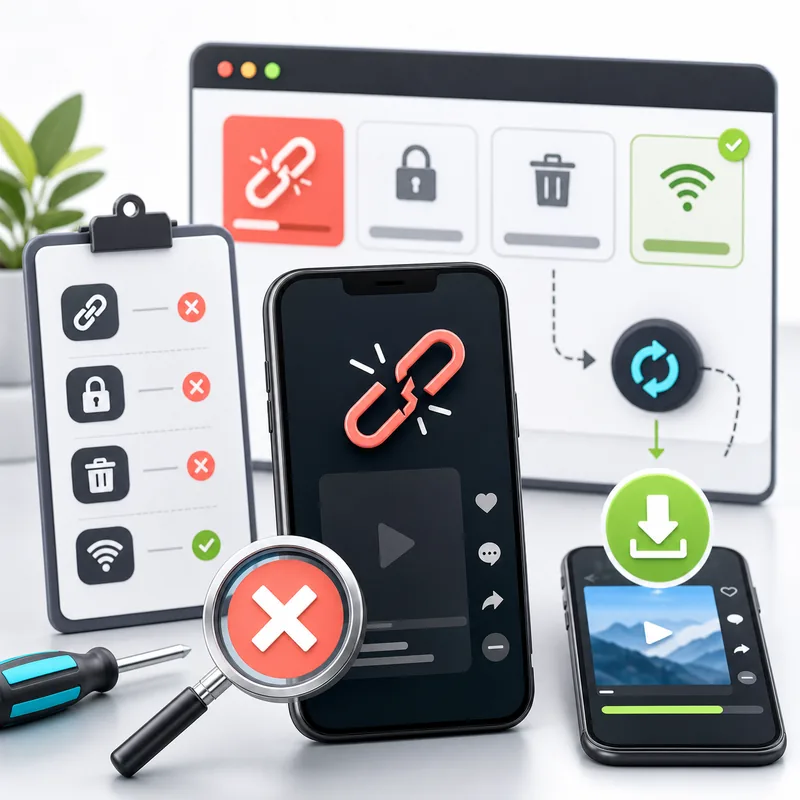
Quick checklist before you try anything complicated
| Symptom | Likely cause | Fast fix |
|---|---|---|
| Link is rejected | Copied the wrong text or a broken short link | Copy the link again from TikTok |
| Result loads but no video appears | Private, deleted, or restricted post | Test another public TikTok link |
| File downloads but will not open | Interrupted download or wrong media type | Delete the file and download again |
| No MP3 option | TikTok did not expose a separate audio source | Use MP4 or try another video |
1. The TikTok link is incomplete or copied from the wrong place
The most common issue is simple: the link is not the real TikTok URL. Sometimes users paste a caption, a search result, a screenshot OCR result, or a message preview instead of the actual share link. A valid TikTok video link usually looks like https://www.tiktok.com/@username/video/..., while short links often start with vm.tiktok.com or vt.tiktok.com.
Go back to TikTok, tap Share, then Copy link. If you are on desktop, open the video page and copy the address from the browser bar. Then paste it into ClipTool's TikTok to MP4 converter. If the link was the problem, this alone usually fixes the download.
2. The short link redirect is failing
TikTok short links are convenient, but they are still redirects. A downloader may need to follow that redirect before it can see the real video page. If the short link was generated in a region, app version, or message context that behaves oddly, the redirect can fail or time out.
Open the short link in your browser first. Wait until it becomes a full TikTok URL, then copy the final address and try again. This is especially useful when a link was shared through chat apps, email newsletters, or copied from an old campaign document.
3. The video is private, friends-only, deleted, or unavailable
A downloader can only process media that TikTok still makes available through a supported public source. If the creator deleted the video, changed it to private, limited it to friends, or blocked access in your region, the downloader may return an error even though the link looks correct.
Test with a different public TikTok video. If the second link works, your browser and the downloader are fine. The issue is the original post. Do not trust tools that claim they can unlock private TikTok videos. They often ask for logins, extensions, or permissions that are not worth the risk.
4. TikTok is rate-limiting or temporarily changing the source
TikTok changes how it serves media from time to time. A link that worked yesterday might fail for a few minutes because of rate limits, temporary source changes, or network issues between TikTok and the downloader server. This is more likely during heavy traffic periods or when you paste many links quickly.
The practical fix is to wait a short time, refresh the page, and try again. If you are downloading many videos for research, slow down the pace and process links in smaller batches. For bulk workflows, the dedicated batch flow is usually better than manually hammering the same input field.
5. Your browser blocked the download
Sometimes the video is processed successfully, but the browser blocks or hides the file. On iPhone, Safari may save the file to the Files app instead of Photos. On Android, Chrome may put it in Downloads. On desktop, the browser may ask for permission, block multiple downloads, or store the file in a folder you did not expect.
Check your download tray, Files app, Downloads folder, and browser settings. If you are on iPhone, the iPhone TikTok downloader guide explains how to move files from Downloads into Photos. If you are on desktop, try another browser such as Chrome, Edge, or Safari and make sure pop-up or download permissions are not blocking the file.
6. The TikTok post is a photo slideshow, not a normal video
Some TikTok posts look like videos because they have music and motion, but they are actually photo slideshows. In that case, a video-first downloader may return images, a ZIP file, or a different set of options. That is expected behavior, not a broken result.
If the post contains multiple swipeable photos, use the TikTok photo downloader. It is designed to save slideshow images as individual files or one ZIP package. If you need a video-style MP4 from a slideshow, you may need a separate editing workflow because the original post is image-based.
7. The audio source is missing or restricted
Users often say a downloader is broken when the video downloads but the MP3 option is missing. In reality, TikTok does not always expose a separate audio source. The original sound may be restricted, muted, removed, or bundled differently depending on the post type. For photo slideshows, the background audio can also arrive in a different format than a standard MP3.
If audio is available, use the TikTok MP3 downloader. If there is no audio result, download the MP4 instead and check whether the sound is present in the video file. Avoid forcing a fake MP3 from a missing or incompatible source; that is how users end up with audio files that will not play.
8. The downloaded file is 0 KB, incomplete, or will not play
A 0 KB file usually means the transfer did not finish. This can happen if you left the page too early, lost connection, blocked the download, or tried to save a file while the browser was still preparing it. Delete the broken file and download again from the result page.
If the file has a normal size but will not play, try opening it with another player or device. Most TikTok video downloads should be MP4. If you see a strange extension, rename was interrupted, or the file came from a slideshow audio source, download again and watch the content type shown by the tool. For reliable editing, use the MP4 result when the post is a normal video.
9. The downloader page is cached, stale, or running in an in-app browser
In-app browsers inside TikTok, Facebook, Instagram, Telegram, or messaging apps can behave differently from normal browsers. They may block downloads, lose clipboard permissions, or open files in a preview instead of saving them. This is why a link might fail inside an app but work in Safari, Chrome, or Edge.
Copy the TikTok link, open your main browser manually, and paste the URL into ClipTool there. If the page still acts strangely, refresh, clear the tab, or open a private window. Browser cache issues are not glamorous, but they cause a surprising number of “downloader not working” reports.
What ClipTool can and cannot fix
ClipTool can help with supported public TikTok links, no-watermark MP4 downloads, MP3 when an audio source is available, photo slideshow ZIP downloads, and common device workflows. It cannot access private drafts, bypass deleted posts, unlock restricted media, or invent a real audio file when TikTok does not provide one. That boundary is important because it keeps the tool safer and more predictable.
If one link fails but many other public links work, the failed link is likely the problem. If every link fails, check your network, browser, or whether the service is temporarily unavailable. For regular use, keep the workflow simple: copy a clean public link, paste it into the right ClipTool page, wait for the result, and save the file from the browser's normal download interface.
When to stop troubleshooting and choose another workflow
After you have copied a fresh link, tested a normal browser, tried another public video, and checked your download folder, more refreshing rarely helps. If the post is private, deleted, restricted, or missing an audio source, the better choice is to change the workflow. For a normal public video, download MP4. For a slideshow, save photos or a ZIP. For your own content, return to the original editor export if you still have it.
This is especially important for creators and marketers working under a deadline. Spending twenty minutes fighting one broken link is usually less productive than asking the creator for the original file, exporting from CapCut again, or using a different public reference video. A downloader is useful when the source is available; it should not become the only place your content archive exists.
FAQ
Why is my TikTok downloader not working today?
The most common reasons are a bad link, private or deleted video, TikTok source changes, browser download blocking, or a temporary network issue. Try a fresh public link first.
Why does one TikTok link fail while another works?
That usually means the failed post is restricted, removed, private, region-limited, or packaged differently. The downloader is probably working if other public links process normally.
Why did I get photos instead of an MP4?
The TikTok post may be a photo slideshow. Use the TikTok photo downloader for image posts and the MP4 converter for normal video posts.
Why is there no MP3 download button?
TikTok may not expose a separate audio source for that post. Download the MP4 instead, or try another public video with a clear audio source.
Should I install a TikTok downloader app if the web tool fails?
Usually no. First test a clean public link in a normal browser. Be careful with apps or extensions that ask for your TikTok login or broad device permissions.
Still stuck? Start again with a clean public link on the ClipTool TikTok downloader. If the post is a slideshow, switch to TikTok Photo Downloader; if you only need sound, try TikTok MP3 Downloader.
![How to Vet a TikTok Influencer Before a Brand Collaboration [2026]](/_next/image?url=https%3A%2F%2Fr2.cliptool.app%2Fblog-thumbnails%2Fhow-to-vet-tiktok-influencer_800.webp&w=828&q=75)
![How to Analyze a Competitor’s TikTok Account: 30-Video Audit [2026]](/_next/image?url=https%3A%2F%2Fr2.cliptool.app%2Fblog-thumbnails%2Fhow-to-analyze-tiktok-competitors_800.webp&w=828&q=75)
![How to Find Top-Performing Videos on Any TikTok Account [2026]](/_next/image?url=https%3A%2F%2Fr2.cliptool.app%2Fblog-thumbnails%2Ffind-top-performing-videos-tiktok-account_800.webp&w=828&q=75)