You tapped Share on a TikTok, went looking for Save video, and the option is greyed out or missing entirely. That happens because the creator turned off downloads for that video in their privacy settings. It stops the in-app save, but it does not necessarily mean the clip is impossible to save — as long as the video is public, the link still works with a browser-based downloader. This guide explains what "downloads off" actually means, how to save a public video anyway, and where the honest limits are so you stay on the right side of privacy and copyright.
If your save is failing for a different reason — an invalid link, a private account, or a tool that simply will not respond — our guide on why a TikTok downloader stops working covers those cases in detail.
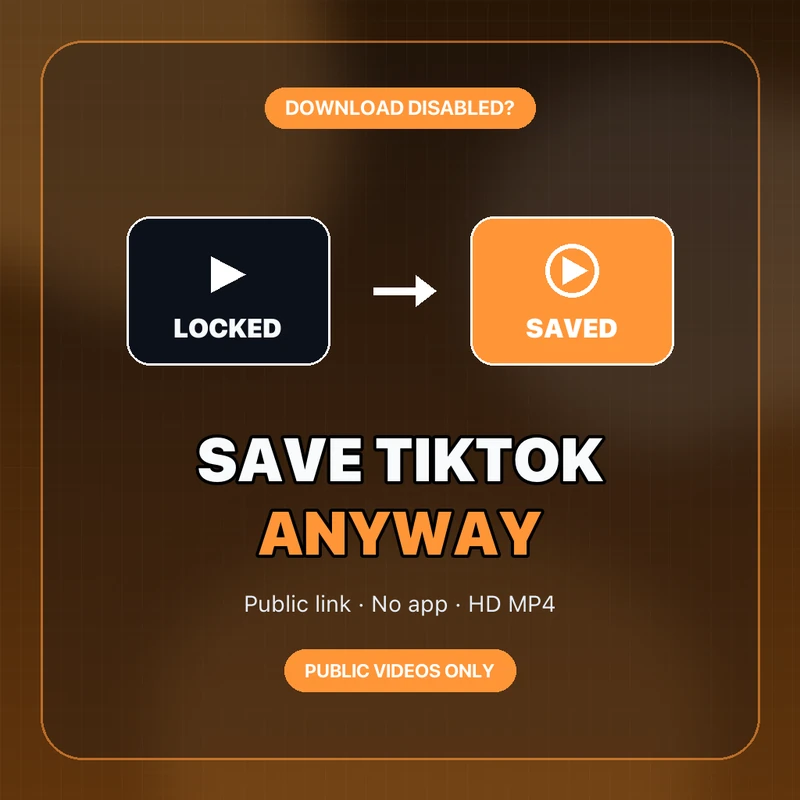
Quick answer: can you still save it?
If the video is public, usually yes. The creator's "allow downloads: off" setting disables the in-app Save button, but it does not make a public video private. Copy the video's share link, paste it into a browser-based TikTok downloader, and it can fetch a clean HD MP4 without needing the in-app button. What you cannot and should not do is bypass privacy on a genuinely private or friends-only video — if the account is private or the clip is not shared publicly, that is off-limits. TikTok's own video visibility settings explain the difference between disabling downloads and making a video private.
So the real question is not "how do I hack the button" — it is "is this video public?" If it is, the steps below get you a clean file. If it is not, the answer is to ask the creator.
| Situation | Can you save it? | Right approach |
|---|---|---|
| Public video, downloads turned off | Usually yes | Use the link with a web downloader |
| Your own video, button greyed out | Yes | Save your own clean copy by link |
| Private / friends-only account | No | Ask the creator for the file |
| Video deleted or region-blocked | No | No public source to fetch |
What "downloads turned off" actually means
Inside TikTok, creators have a per-account and sometimes per-video setting that controls whether other people can use the in-app Save video button. When it is off, tapping Share simply does not show a working Save option. Crucially, this is a convenience toggle, not a privacy wall. The video itself is still public — anyone can watch it, it still has a normal share URL, and that URL still points to the media.
That is why a link-based downloader can still reach a public clip: it reads the same public page any viewer can open, not some private area. The setting only removes the shortcut inside the app. Making a video truly unreachable requires setting it to private or friends-only, which is a different control entirely — and one you should always respect.
Creators often turn off downloads for reasons that have nothing to do with locking the video away — they may want to discourage casual re-uploads, keep engagement inside the app, or simply have the setting on by default. None of that changes the public status of the clip. It is a useful distinction to keep in mind, because it explains why "downloads off" and "private" feel similar but behave completely differently: one is a nudge, the other is a wall.
Saving your own video when the button is greyed out
A very common version of this problem is trying to save your own TikTok and finding the button disabled — often because your account has downloads turned off globally, so even you cannot use the in-app save on your own posts. You do not need to flip that setting for the whole account. Because your posted videos are public, you can grab clean copies the same way: copy the video link and run it through a downloader to get a watermark-free MP4 of your own work.
This is the safest way to build an archive of everything you have published, especially if you plan to repurpose clips later or worry about losing access to the account. Keeping your own master files means you are never dependent on a single platform to hold your content, and you always have a clean version ready to repost elsewhere.
Step 1: Copy the public video link
Open the TikTok, tap the Share arrow, and choose Copy link. Even when Save video is missing, Copy link is almost always still there, because sharing the URL is separate from the download toggle. Make sure you are copying the link to the specific video, not the creator's profile. If you receive a shortened vt.tiktok.com link, open it in a browser once so it expands to the full address, which downloaders handle more reliably.
If you are on a desktop, you can also grab the URL straight from the address bar while watching the video on the web. Either way, the link is all a web downloader needs — you never have to log in or install anything to save a public clip. If Copy link is somehow missing too, opening the creator's profile on the web and clicking into the specific video gives you a clean, shareable address in the browser bar.
Step 2: Paste it into a web downloader
Go to a browser-based TikTok downloader and paste the link into the box. Because the tool works from the public URL rather than the app, the creator's disabled Save button does not block it. Choose the clean MP4 option, and prefer the highest resolution offered so the file stays sharp — you can pull the HD version when it is available.
Avoid any site that asks you to log into TikTok, scan a QR code, or hand over your account details to "unlock" a video. A legitimate downloader never needs your credentials to fetch a public clip, and those requests are a classic way to hijack accounts. If a tool demands a login to save a public video, close it.
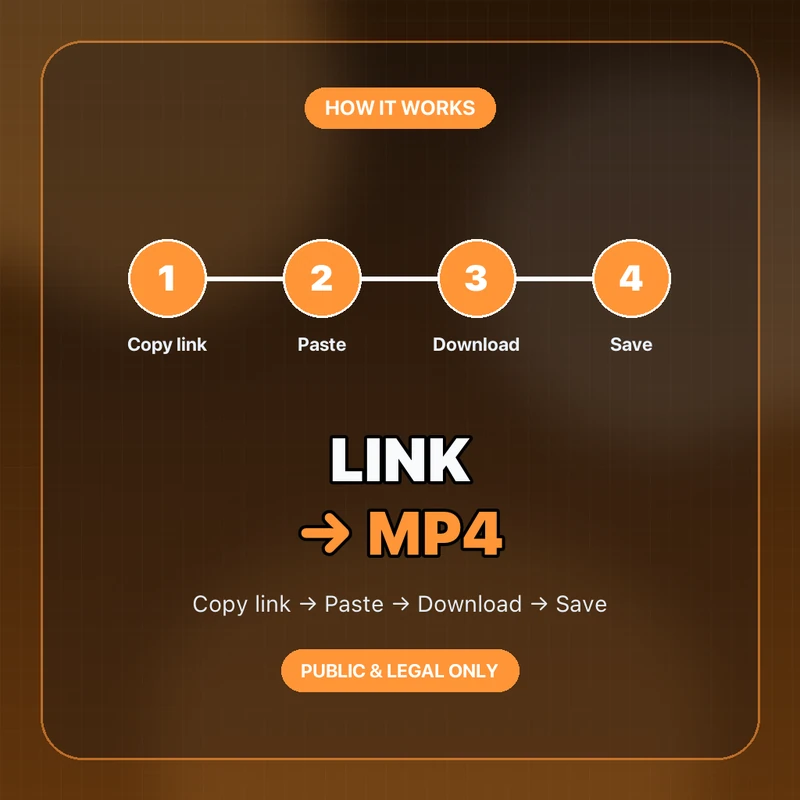
Step 3: Download and save the MP4
Start the download and the file lands in your device's Downloads folder or Files app. On an iPhone, saved files usually appear in the Files app under Downloads; on Android they are in Downloads or My Files; on a computer they go to your browser's download location. Play the first few seconds to confirm the clip is complete and has sound, then move it wherever you need it.
If nothing downloads, re-copy the link, expand a shortened URL, or check that the video is genuinely public and not deleted. A quick way to test the setup is to try the same steps on a normal public video first — if that works but a specific clip fails, the clip is probably private, removed, or blocked in your region rather than just download-disabled.
Once the file is saved, treat it like any download: play it fully to confirm it is complete, and keep it organized if you plan to reuse it. If you want the sharpest possible copy — for example to repost to another platform later — pull the HD version rather than a smaller file, since a crisp source holds up much better after each platform re-compresses it.
What you shouldn't try to do
There is a clear line here. Saving a public video whose owner only turned off the in-app button is normal. Trying to pull a private or friends-only video, or a clip from a locked account, is not — that content was deliberately restricted, and no reputable tool will fetch it. If you need a private video, the right move is simply to ask the creator to send you the file or make it public.
The same goes for how you use what you save. Downloading a clip for offline viewing or personal reference is one thing; re-uploading someone else's video as your own or using it commercially without permission is another. Keep downloads to public content, respect the creator's rights, and you avoid both the ethical and the copyright problems.
It is worth being especially wary of any tool or tutorial that claims it can pull private or friends-only videos. Those promises are either a scam designed to harvest your login, or a genuine attempt to break someone's privacy — neither of which you want to be part of. A reputable downloader only ever works with public links, needs no account access, and quietly declines anything that is not public. If a service behaves otherwise, that is your signal to walk away rather than a clever shortcut.
FAQ
Can I download a TikTok if the creator disabled downloads?
If the video is public, usually yes. The setting only disables the in-app Save button; a browser-based downloader can still fetch the public clip from its share link. Private videos are off-limits.
Does this work for private or friends-only videos?
No. Those are deliberately restricted, and a legitimate downloader cannot and should not access them. Ask the creator to share the file or make it public.
Do I need to log in or install an app?
No. Saving a public video only needs the share link and a web downloader. Never enter your TikTok login or scan a QR code for a site that promises to "unlock" a video — that is how accounts get stolen.
Why is the Save video button missing but Copy link still there?
Sharing the URL and saving the file are separate controls. Creators can turn off downloads while still allowing the link to be shared, which is exactly why a link-based tool still works.
The link won't download — what's wrong?
Expand any shortened URL, re-copy the specific video link, and confirm the video is public and not deleted or region-blocked. If a normal public video downloads but this one won't, it is likely private or removed.
Bottom line: a disabled download button only removes the in-app shortcut — a public TikTok can still be saved from its link with a web downloader, no login required. Keep it to public videos, respect private content, and you get a clean HD MP4 the right way, without ever handing your account details to a sketchy site.
![How to Vet a TikTok Influencer Before a Brand Collaboration [2026]](/_next/image?url=https%3A%2F%2Fr2.cliptool.app%2Fblog-thumbnails%2Fhow-to-vet-tiktok-influencer_800.webp&w=828&q=75)
![How to Analyze a Competitor’s TikTok Account: 30-Video Audit [2026]](/_next/image?url=https%3A%2F%2Fr2.cliptool.app%2Fblog-thumbnails%2Fhow-to-analyze-tiktok-competitors_800.webp&w=828&q=75)
![How to Find Top-Performing Videos on Any TikTok Account [2026]](/_next/image?url=https%3A%2F%2Fr2.cliptool.app%2Fblog-thumbnails%2Ffind-top-performing-videos-tiktok-account_800.webp&w=828&q=75)