Want to reuse a TikTok on Instagram Reels, YouTube Shorts, or a second TikTok account without that bouncing logo stuck to the video? Repurposing short videos across platforms is one of the smartest ways to reach new audiences, but most people go about it the wrong way. They screen-record or save straight from the app, end up with a watermark in the corner, and post a blurry, obviously-recycled clip. This guide walks through the clean workflow instead: get the original video without a logo, keep it sharp, and publish it correctly on each platform.
This is not about stealing other people's content. Repost only videos you own or have permission to use. The goal here is to move your content between platforms while keeping it looking professional. Every route starts with the same thing: a clean source file. You can grab one with a TikTok downloader that removes the watermark before you edit or upload anything.
Quick answer: how do you repost a TikTok without the logo?
Start from a clean file instead of trying to erase a logo later. Download the video as a watermark-free MP4, confirm it is still a vertical 9:16 clip in good resolution, then upload it to the platform you want like any normal video. If you want to keep it as sharp as possible, pull the HD version rather than a file that has already been compressed several times. Trying to blur or crop out a burned-in watermark almost always leaves a smudge and ruins the frame, so it is not worth it.
The rest of this guide covers the three most common destinations — Instagram Reels, YouTube Shorts, and another TikTok account — plus how to handle audio and rights so your reposts do not get suppressed or hit with a copyright claim.
| Where you're reposting | What matters most | Watch out for |
|---|---|---|
| Instagram Reels | 9:16 frame, clean file, captions not cut off | Trending audio doesn't carry over |
| YouTube Shorts | HD resolution, H.264, a searchable title | Looks blurry on big screens if low-res |
| Another TikTok account | Native Repost vs a fresh re-upload | Duplicate-content and credit issues |
| Any platform | Start from a no-logo source | Screen recordings look recycled |
Why screen recording is the wrong way to do it
Screen recording feels quick, but it creates more problems than it solves. The capture picks up the status bar, tap indicators, the TikTok watermark, and sometimes a notification that slides in mid-video. Quality drops too: your screen is already showing a compressed version, you record that into a second compressed file, and then the destination platform compresses it a third time when you upload. The result looks soft and noisy.
Viewers and recommendation systems both notice recycled clips. Platforms tend to favor content that looks native and original, not something that clearly came from somewhere else with a logo attached. Starting from a clean MP4 keeps the full frame, the original sharpness, and none of the on-screen clutter — which is exactly what you want when the same clip has to perform on a new audience.
Step 1: Get a clean HD MP4
Open the TikTok you plan to repost and tap Share to copy the link. Use the specific video link (the tiktok.com/@user/video/... format), not a profile or hashtag page, so the downloader reads the right source. If the link is a short vt.tiktok.com one, open it in a browser first to expand it. Paste that link into a no-watermark downloader and save the clean MP4.
Because the clip may end up on a large screen, especially on YouTube, download the highest resolution available. A crisp source survives re-compression far better than a soft one. Again, only do this with your own videos or content you are allowed to reuse. Once you have the clean file, you can move on to whichever platform you are targeting — the steps below are independent, so jump to the section you need.
It also helps to save your clean files in one place before you start reposting. On a phone, downloads land in the Files app or the Downloads folder; on a computer they go to your browser's download location. Keep a simple folder per project, rename the master file something you will recognize later, and play the first few seconds to confirm the download finished properly and still has audio. A tidy source folder means you can repost the same clip to a second platform weeks later without hunting for it or re-downloading a lower-quality copy.
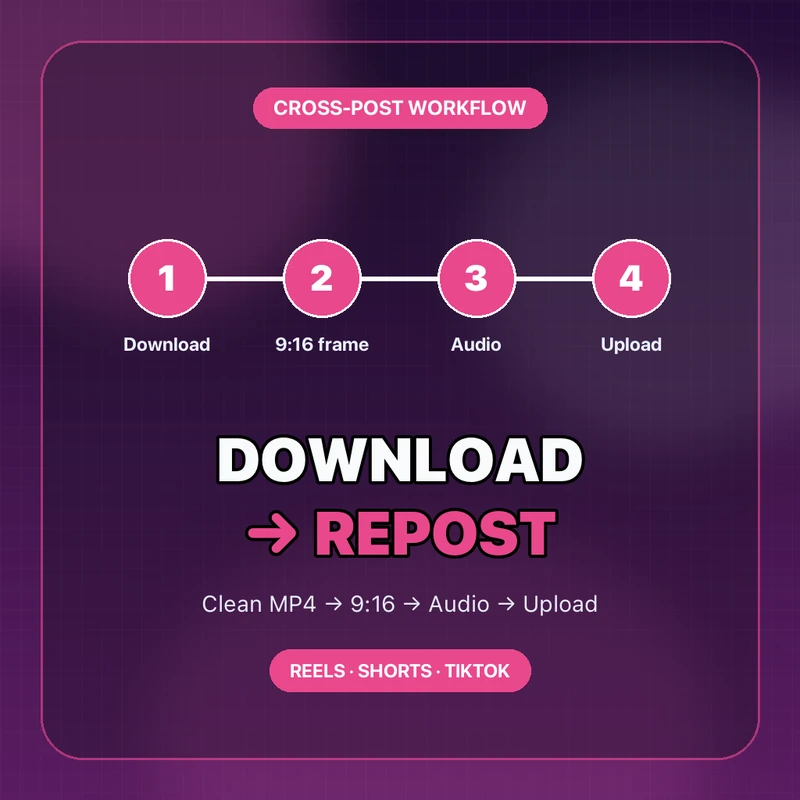
Post to Instagram Reels
Reels uses the same vertical 9:16 shape as TikTok, so most clips fit without cropping. Still, open the file first and check two things: whether there are black bars top and bottom, and whether the original caption sits too low. Reels shows action buttons on the right and the description along the bottom, so text placed near the lower edge can get covered. If the burned-in TikTok caption is in the way, remove it from the frame and rewrite it in Instagram's description instead.
Audio is the part people forget. When you download an MP4, the sound travels with the file, but it will not connect to Instagram's music library or trending audio. If the original voice or sound is the point, keep it as is. If you want to ride a trend on Reels, mute the original background track and pick a sound from the Reels library when you post. Write a caption for the Instagram audience rather than pasting the TikTok one, and choose a clean cover frame so the clip looks tidy on your profile grid. Instagram's own Reels guidance is worth a look for current length and format limits.
One more thing that separates a repost that lands from one that flops: the first second. Reels viewers decide almost instantly whether to keep watching, so if the original TikTok opened with a slow intro or a text card that only made sense on TikTok, trim it. Lead with the strongest moment, keep the clip tight, and add a few relevant hashtags rather than the exact tag set you used on TikTok. Small adjustments like these make the clip feel made for Instagram instead of copied into it, which is what both viewers and the feed reward.
Post to YouTube Shorts
Shorts is vertical too, but YouTube plays across phones, tablets, and TVs, so resolution and codec matter more here. A file that looked fine on a phone can look soft on a big screen. Upload a version that is at least 1080 pixels on the long edge for a vertical clip, and stick to the widely-compatible H.264 codec so the file processes cleanly. If your downloaded file is low-res, go back and grab the HD version before uploading.
YouTube also rewards a clear title, because it is a search engine as much as a feed. Instead of copying your TikTok caption, write a short title with the words people actually search for. YouTube usually detects a vertical clip under a minute as a Short automatically. Keep your audio rights clean — YouTube's copyright system is strict, so if you are not sure about a trending song, swap it for a track from the audio library, especially on a channel that earns money. YouTube's Shorts documentation covers the current requirements.
Consistency pays off on YouTube more than on TikTok, because Shorts can keep surfacing months after you post them. Give related reposts a recognizable style — similar hooks, a consistent tone, and a description that points viewers to more of your content. Unlike a TikTok that lives and dies in a few days, a well-titled Short can quietly pull views for a long time, which makes the extra minute you spend on the title and the clean HD file genuinely worth it.
Repost to another TikTok account
Moving a clip to a second TikTok account has two paths. The first is TikTok's built-in Repost button, which shares a video to your followers' feeds without re-uploading it — but it keeps the original creator's name and does not put the clip on your profile as your own post. The second is a fresh re-upload: you post the clean MP4 as a new video on the second account. Re-uploading gives you a real post you control, which matters if the second account is yours (for example, a backup or a niche channel).
When you re-upload, be mindful of duplicate content. Posting the exact same file repeatedly can look spammy, so it helps to change the caption, hook, or first second, and to credit the original if it is not your own. If you routinely repost older material, our guide on downloading your own TikTok videos without a watermark pairs well with this step, since it covers getting clean copies of everything you have already posted.
Rights, credit, and copyright
Reposting across platforms always raises the question of permission. If the video is yours, cross-posting is completely normal. If it belongs to someone else, get permission or make sure it is clearly shareable, and credit the creator. Music is its own layer: a sound that is trending on TikTok is not automatically cleared for use on Reels or Shorts, particularly for commercial or monetized content. When in doubt, use platform-provided audio or your own recordings. For a shortlist of tools that produce clean files to work from, see our roundup of the best TikTok downloaders.
FAQ
Can I remove a watermark from a TikTok I already saved with the logo?
Not cleanly. A burned-in watermark is part of the pixels, so cropping or blurring it leaves a smudge or cuts off the frame. The reliable fix is to re-download the video from a no-watermark source and start over with a clean file.
Will Reels or Shorts penalize me for reposting a TikTok?
Reposting your own content is fine. What hurts is a low-quality, clearly-recycled clip with a visible logo. A clean file, a native caption, and platform-appropriate audio make the repost look original.
Does the trending TikTok sound come across when I repost?
No. The audio is baked into the MP4, but it will not link to the destination platform's music library. Keep the original sound if it matters, or add a trending track from Reels or Shorts when you upload.
Should I use TikTok's Repost button or re-upload the video?
Repost shares to your followers while keeping the original creator's name. Re-upload creates a new post you own — better when the second account is yours, as long as you tweak the caption and avoid exact duplicates.
What resolution should I repost in?
Aim for a vertical clip at least 1080 pixels on the long edge, using H.264 MP4. That keeps it sharp on Reels and Shorts even after each platform re-compresses the upload.
Bottom line: to repost a TikTok without the watermark, start from a clean HD MP4, keep the 9:16 frame, handle audio per platform, and mind the rights. Starting from a clean source beats every trick for erasing a logo after the fact.
![How to Vet a TikTok Influencer Before a Brand Collaboration [2026]](/_next/image?url=https%3A%2F%2Fr2.cliptool.app%2Fblog-thumbnails%2Fhow-to-vet-tiktok-influencer_800.webp&w=828&q=75)
![How to Analyze a Competitor’s TikTok Account: 30-Video Audit [2026]](/_next/image?url=https%3A%2F%2Fr2.cliptool.app%2Fblog-thumbnails%2Fhow-to-analyze-tiktok-competitors_800.webp&w=828&q=75)
![How to Find Top-Performing Videos on Any TikTok Account [2026]](/_next/image?url=https%3A%2F%2Fr2.cliptool.app%2Fblog-thumbnails%2Ffind-top-performing-videos-tiktok-account_800.webp&w=828&q=75)