You downloaded a TikTok and the file plays perfectly — except there is no sound at all. It is one of the most common and most frustrating problems with saving TikToks, and the cause is almost never a single thing. Sometimes the original video was muted, sometimes the audio came down in a format your player does not like, and sometimes the downloader grabbed a video-only stream and left the sound behind. The good news is that each cause has a clear fix. This guide explains why it happens and gives you six practical ways to get the audio back.
If your download is failing in other ways too — broken links, private videos, files that will not save — it is worth reading our companion guide on why a TikTok downloader stops working, since a few of those causes overlap with missing audio.
Quick answer: why is my downloaded TikTok muted?
In most cases the audio is either missing at the source or stored in a format your player is struggling with. Before anything else, open the original video on TikTok and confirm it actually plays sound — if the creator muted it or the track is region-restricted, there is nothing to recover. If the original has sound but your download does not, the usual culprits are a video-only download, an M4A audio track a basic player cannot read, or a converter that stripped the audio. Re-downloading the full file, opening it in a better player, or grabbing the audio separately fixes the vast majority of cases.
Work through the table below to identify your situation, then jump to the matching fix.
| What's happening | Likely cause | Fix to try |
|---|---|---|
| Original TikTok is also silent | Muted or region-restricted audio | Nothing to recover; find another source |
| Plays with sound on TikTok, not in file | Video-only stream downloaded | Re-download the full MP4 |
| Silent in one app, fine in another | Player can't read the audio codec | Open in VLC or another player |
| Audio file is .m4a, won't play | Format compatibility | Convert once to MP3 |
Why TikTok downloads lose their sound
TikTok delivers video and audio in separate streams behind the scenes, and a download only has sound if both streams are merged into the final file. Some tools grab the video stream and skip the audio, which produces a perfectly clear but completely silent clip. Other times the audio comes down as an M4A file, which is a normal format but one that older or basic players do not always handle, so it looks like there is no sound when the file is actually fine.
There is also the source side. If the creator uploaded the video muted, used a sound that is restricted in your region, or the track was removed for rights reasons, the audio simply is not there to download. That is why the first move is always to check the original before blaming the downloader — it saves you from chasing a fix for a problem that started on TikTok's end.
Understanding this split — separate streams, format quirks, and source-side muting — is what turns a random guessing game into a quick diagnosis. Once you know a silent file usually means "video-only save," "codec my player can't read," or "muted at the source," you can tell within a minute which of the six fixes below you actually need instead of trying all of them.
The 6 fixes
1. Check the original video first
Open the TikTok in the app with your volume up. If it is silent there, or shows an "audio not available" note, the download will be silent too. Look for another version of the same clip — a repost or an official upload — that still has its sound.
2. Re-download the complete MP4
If the original has sound but your file does not, the tool likely saved a video-only stream. Download it again and choose the standard MP4 option that includes audio. Using a reliable TikTok downloader that merges both streams solves this in one step.
3. Open the file in a different player
Some default players cannot read certain audio codecs, so the clip looks muted even though the sound is in the file. Open it in VLC (free on phones and computers) or another full-featured player. If the sound returns, the file was fine all along and it was a player issue.
4. Handle M4A audio the right way
If you downloaded the audio separately and it came as an M4A file that will not play, do not panic — M4A is a standard audio format. Update your player, try a different device, or convert it once to MP3 if you need broad compatibility. Avoid converting repeatedly, since each pass can reduce quality.
5. Grab the audio on its own
When you only need the sound — for editing or reuse — download the audio directly instead of fighting a silent video. A dedicated TikTok to MP3 tool pulls the track when the source has a separate audio stream, which sidesteps the muted-video problem entirely.
6. Re-check quality and re-transfer
If you moved the file through a chat app or several devices, it may have been altered or stripped along the way. Go back to the clean HD source, download the HD version again, and transfer it without sending it through apps that compress media.
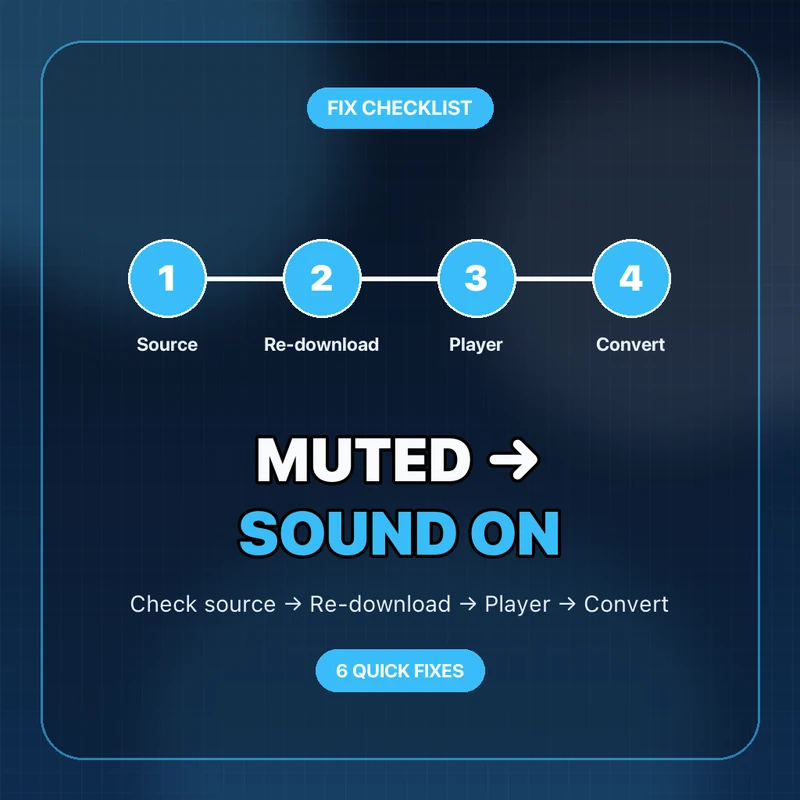
How to download a TikTok with sound the first time
Prevention beats troubleshooting, and getting audio right on the first try is mostly about picking the correct option and a tool that does the merging for you. A muted file almost always traces back to a choice made at download time — a "video only" option, a converter that dropped the track, or a half-finished save — so a few deliberate habits eliminate the problem before it starts.
You can avoid the whole problem by downloading correctly from the start. Copy the specific video link, not a profile or hashtag page, so the tool reads the right source. Pick the normal MP4 option rather than any "video only" choice, and prefer a tool that merges the audio and video streams into one file. Once it downloads, play the first few seconds before you move on, so you catch a silent file immediately instead of discovering it later.
On a phone, check that the file finished downloading fully before opening it — a partial download can play without sound. On a computer, if a file refuses to play its audio, VLC is the quickest way to confirm whether the sound is present. These small habits catch almost every muted-download situation before it becomes a headache.
Fixing it on iPhone, Android, and PC
On an iPhone, silent downloads usually come down to two things: the file did not finish saving, or the Photos app is choking on the audio format. Check the file in the Files app under Downloads first, and if it plays there but not in Photos, re-save it or open it in VLC for iOS. Also make sure your phone is not simply on silent mode with the ringer switch — it sounds obvious, but it catches people who assume the file is broken when the phone is just muted.
On Android, downloaded clips land in the Downloads or My Files folder, and the built-in gallery player is usually fine, but some manufacturer players skip certain audio codecs. If a clip is silent in the gallery but plays in VLC, the file is fine and it was a player limitation. If it is silent everywhere, re-download the full MP4 rather than a video-only stream.
On a computer, you have the most control. Open the file in VLC to confirm whether audio is present at all, and if it is an M4A audio-only file, VLC or a single conversion to MP3 handles it. Desktop is also the easiest place to re-download a clean HD copy and verify it before you move it to a phone, so if a clip matters, prepare it on a computer first.
When the original is simply muted
Sometimes there is genuinely no sound to recover. If the creator posted the video without audio, replaced the track, or used a sound that is blocked in your country, no downloader can add sound that was never in the public file. In that case your options are to find a different upload of the same clip that still has audio, or to accept the silent version. No legitimate tool can "unlock" audio that TikTok does not serve, so avoid sites that promise to do exactly that in exchange for a login.
FAQ
Why does my downloaded TikTok have no sound but plays fine on TikTok?
The tool most likely saved a video-only stream, or your player cannot read the audio codec. Re-download the full MP4 and try opening it in VLC.
Is an M4A audio file broken?
No. M4A is a normal audio format that most modern devices play. If yours will not, update the player, switch devices, or convert once to MP3.
Can I add sound to a TikTok that downloaded silent?
Only if the audio exists in the public source. If the original is muted or the track is restricted, there is nothing to recover — find another version that still has sound.
How do I download just the sound from a TikTok?
Use a TikTok-to-MP3 tool with the video's link. It extracts the audio track when the source provides one, which is the cleanest way to get sound without a muted video.
Does sending the file through a chat app remove the audio?
It can degrade or alter media. If a shared file lost its sound, re-download the HD original and transfer it without routing it through apps that compress media.
Bottom line: a muted TikTok download almost always comes from a video-only save, a player that cannot read the audio, or a source that was silent to begin with. Check the original, re-download the full MP4, switch players, and the sound comes back in nearly every case. Work through the fixes in order and you will rarely reach the last one before the audio returns — the earlier steps solve the overwhelming majority of muted downloads on their own.
![How to Vet a TikTok Influencer Before a Brand Collaboration [2026]](/_next/image?url=https%3A%2F%2Fr2.cliptool.app%2Fblog-thumbnails%2Fhow-to-vet-tiktok-influencer_800.webp&w=828&q=75)
![How to Analyze a Competitor’s TikTok Account: 30-Video Audit [2026]](/_next/image?url=https%3A%2F%2Fr2.cliptool.app%2Fblog-thumbnails%2Fhow-to-analyze-tiktok-competitors_800.webp&w=828&q=75)
![How to Find Top-Performing Videos on Any TikTok Account [2026]](/_next/image?url=https%3A%2F%2Fr2.cliptool.app%2Fblog-thumbnails%2Ffind-top-performing-videos-tiktok-account_800.webp&w=828&q=75)